Multiplatform Version Management Guide
Overview
This guide is for the administrator who deploys EWA Multiplatform to Windows devices through Version Manager. It covers getting the package, creating the version in Insight, uploading the package, and assigning it to a group.
For the UWP EWA Client and for MUBroker, use the Version Management Guide instead. EWA Multiplatform is packaged differently, so the two guides do not mix.
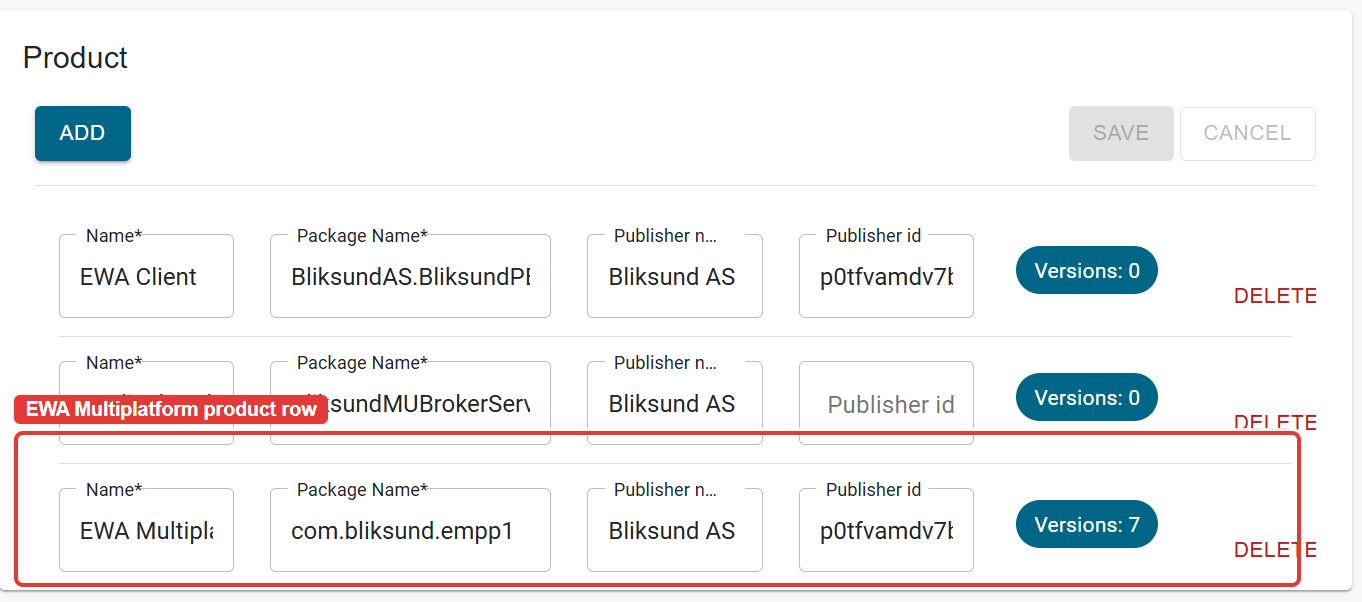
EWA Multiplatform must exist as a Product in Insight before you can add a version for it. If it is missing, the database hasn't been migrated yet. The row ships with a database migration, so run the migration rather than typing the row in by hand.
Prerequisites
Two things must already be true on each device:
- The Bliksund Update Service is installed and running. The service does not update itself, so it needs to be installed or upgraded by hand.
- That build of the service accepts a plain
.msixpackage file. EWA Multiplatform ships a single.msix, not an.msixbundle.
Get the package
You do not assemble this zip yourself. Download it from the windows-version-manager-package folder in the build's artifacts list.
The zip you downloaded holds the package file at the top level, with no wrapping folder. Example from build 0.0.5253:
EWA.Multiplatform_0.0.5253.0.zip
└── EWA.Multiplatform_0.0.5253.0_x64.msix
The build adds a Dependencies folder beside the package file when the app has framework dependencies. EWA Multiplatform carries its own runtimes today, so the folder is absent and the zip holds one file. Both shapes are valid.
Add the version in Insight
Open Administration > Version Manager in Insight, then open Software Versions in the left sidebar.
-
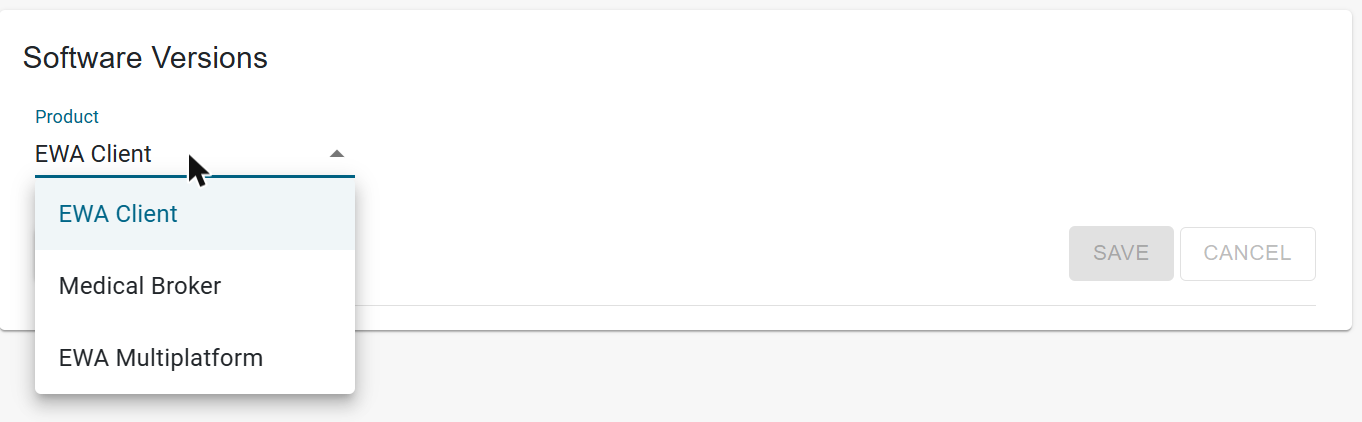
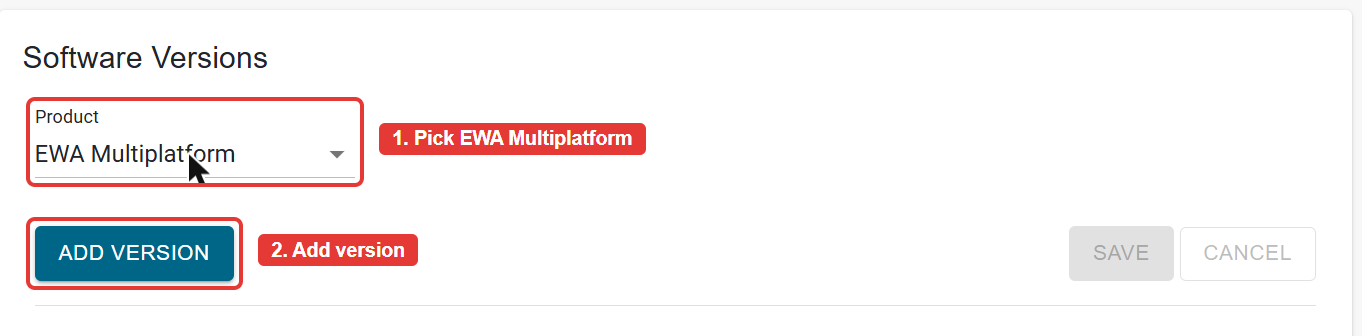
In Product, select EWA Multiplatform.
-
Click ADD VERSION. A new, empty row appears at the top of the list.
-
Type the version number in Version, then click SAVE.
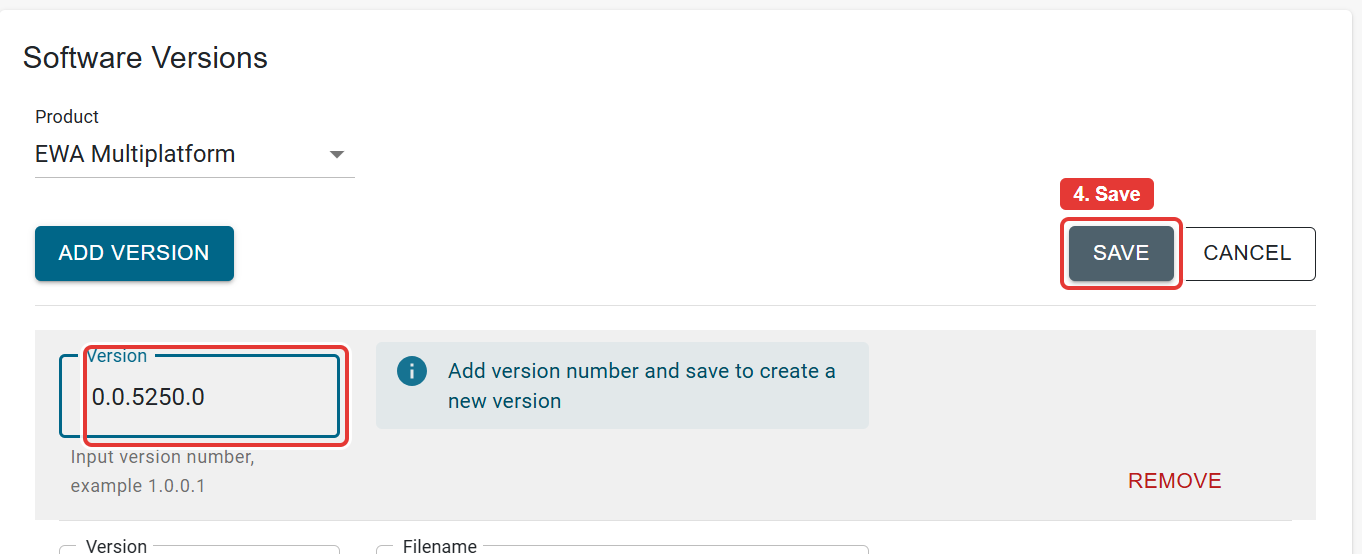
The version number must exactly match the package identity version, which is the version the device reports. Read it off the zip file name: EWA.Multiplatform_0.0.5253.0.zip means you enter 0.0.5253.0.
It has four parts. A version number that does not match the package means the device never sees itself as up to date.
Upload the package
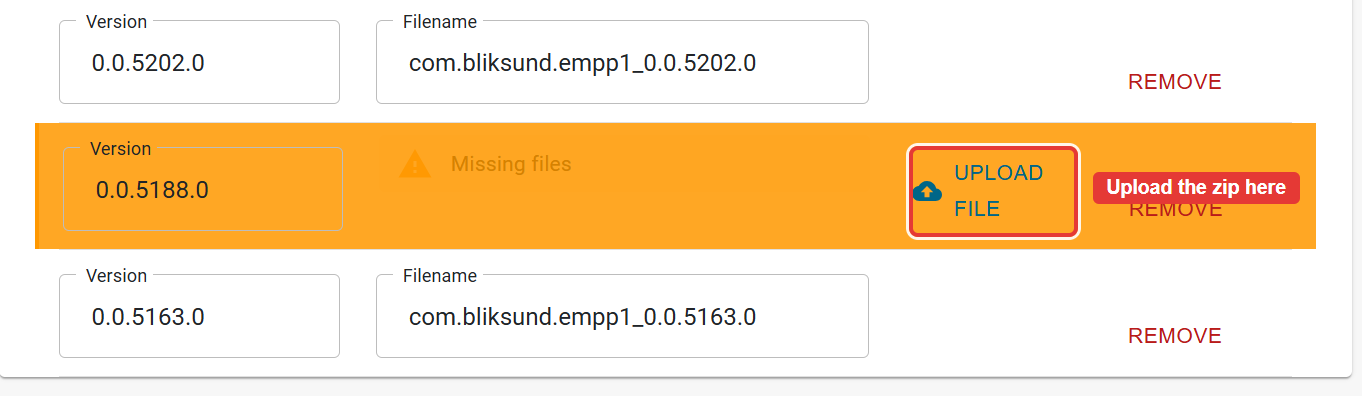
A version you have just saved carries no package yet, so it shows as an orange Missing files row.
-
Click UPLOAD FILE on that row.
-
Select the
EWA.Multiplatform_<version>.zipfile you downloaded and click Open. -
Wait for the upload to finish. The row turns white, and Filename fills in.
The filename Insight shows is built from the package name and the version, for example com.bliksund.empp1_0.0.5253.0. It is not the name of the zip you uploaded. That is expected.
Assign the version to a group
Open Device Groups in the left sidebar and select EWA Multiplatform in Product. A group holds the version its devices should install.
To create a group:
- Click ADD.
- Type a name in Name.
- Select the version you uploaded in Desired version.
- Click SAVE.
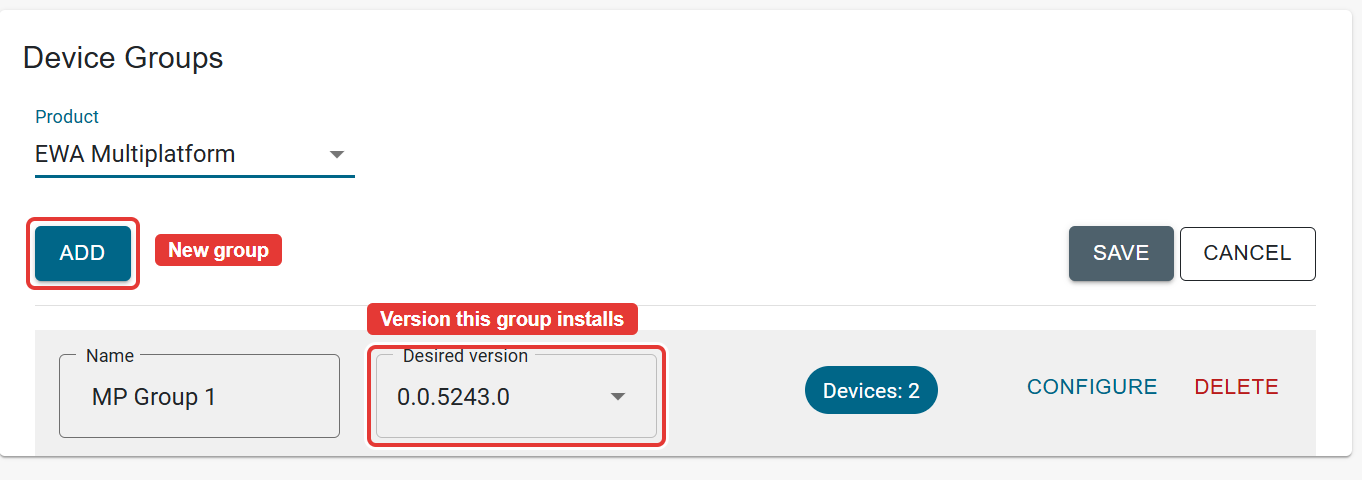
Groups are shared across Products, and Desired version is set per Product. The same group can point to an EWA Multiplatform version and to an EWA Client version at the same time, so setting one does not disturb the other.
Do not enter group configuration for EWA Multiplatform. The CONFIGURE button accepts and saves JSON, and Insight shows no error, but EWA Multiplatform never reads it and never reports a result back, so nothing changes on the device. Configuration through Version Manager works for the UWP EWA Client product only.
To assign a device to the group, open Devices in the left sidebar. The list shows Machine ID, Name, Group and Last Heartbeat.
- Click the edit icon on the device in the list.
- Choose the group from the dropdown menu.
- Click Save.
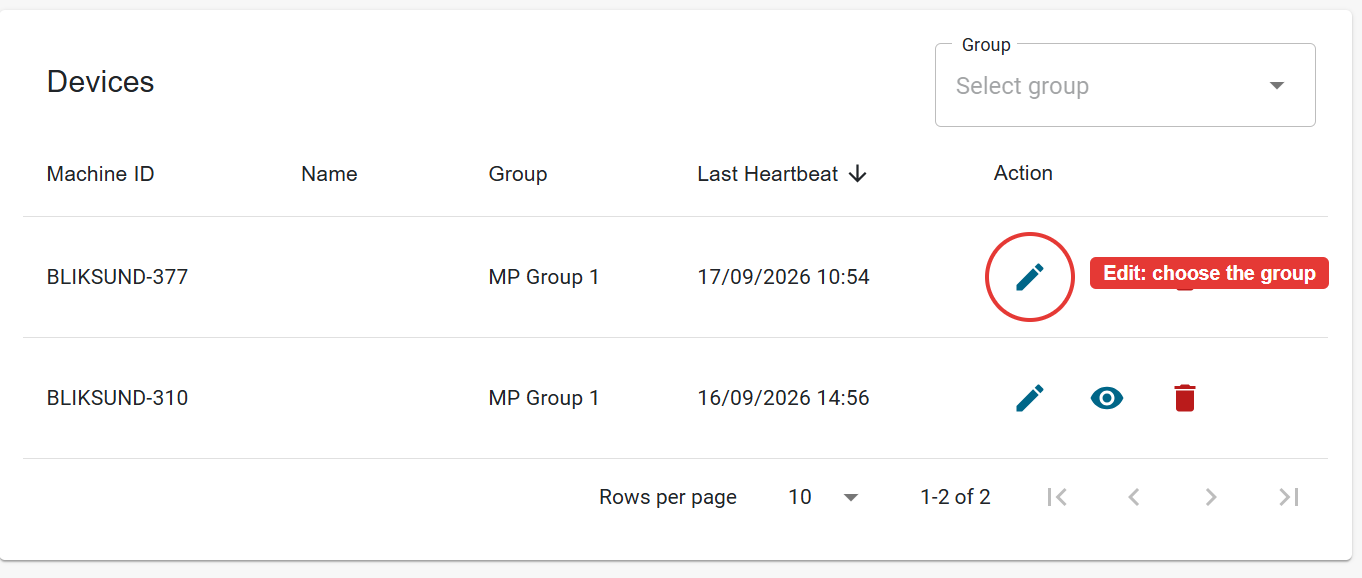
Devices with a correctly configured Version Manager service register themselves. A newly registered device starts without a group, so it installs nothing until you assign one.
What the crew sees after a successful install
The Bliksund Update Service installs the newer version underneath the running app. The app keeps running the version it started with until it restarts.
A crew member who is logged in sees a Newer version ready dialog offering a restart.
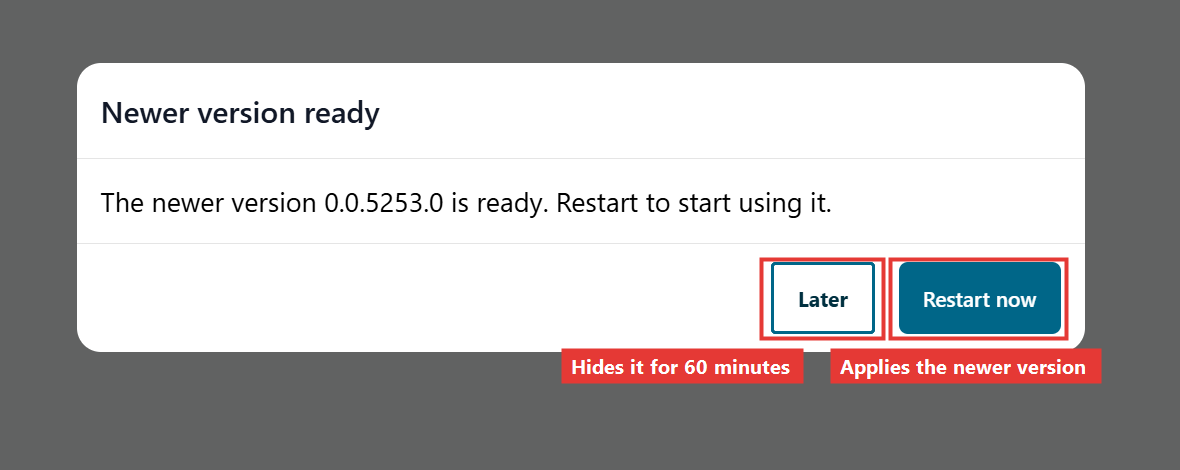
On a device with nobody logged in, no dialog appears. The device switches to the newer version the next time somebody closes and opens the app.
Roll out a new version safely
- Add the new version on the Software Versions page.
- Upload the package.
- Assign the version to a test group first.
- Watch the devices in the test group until the installation succeeds.
- Once verified, assign the version to your remaining groups.
Troubleshooting
The upload succeeds, but the installation fails with "Could not determine package type". The zip has a folder inside it. This happens when you download the artifact instead of the inner file. Go back to the artifact, expand it, and download EWA.Multiplatform_<version>.zip on its own.
The device is not listed on the Devices page. A device appears only after it reports an installed application that resolves to a Product. If the EWA Multiplatform Product is missing, the device reports itself and matches nothing, so it never shows up. Open the Applications page and check that the EWA Multiplatform row exists, as described in the Overview.
Devices never install the new version. Check, in this order:
- The device is assigned to a group.
- The group has the EWA Multiplatform version in Desired version.
- The installation time has passed.
- The device contacted Version Manager recently, shown as Last Heartbeat.
- The device's Event Viewer log, for errors from the Bliksund Update Service.
Devices install, but the version in Insight never matches. The version number you entered differs from the package identity version. Read the four-part number off the zip file name and create the version again with that number. To see what a device actually reports, open Devices, click the view icon on the row, and read Installed version in the details dialog.
The crew reports the app is still on the old version after a successful install. The app applies a newer version when it restarts, not when the service installs it. Ask the crew to accept the Newer version ready dialog, or to close and open the app.
A configuration you entered has no effect. That is expected. EWA Multiplatform does not read group configuration.