Resource Type User Guide
The resource type page is an administrative interface enabling the management of resource types to be available to the organization and its users. From this page you will be able to create / update / delete resource types in addition to the corresponding roles for each resource type. The roles added to the resource type will be able to be selected by a user connected with that resource type within the client application. In order to enter the page of managing resource types, you need to click on "administration" in the navigation bar and select "resource types

Access Rights
- To access the resource types settings page requires either one of these access rights depending on the administrative level:
| Access right | Requires federated login configuration? | Description |
|---|---|---|
| AllResources | No | Can access resources settings page and resource types settings page under the administration menu for all organizations and departments in Insight, view current values, edit values, and view the change history for those settings. |
| OrganizationResources | Yes | Can access resources settings page and resource types settings page under the administration menu for associated organizations in Insight, view current values, edit values, and view the change history for these settings. |
| DepartmentResources | Yes | Can access resources settings page and resource types settings page under the administration menu for related departments in Insight, view current values, edit values, and view the change history for these settings. |
Resource type Page
- On this page you can administrate the different resources types within your organization. This includes create, update and delete resource types, the crew roles of each resource type, and the vital signs and test results its resources offer for manual entry.
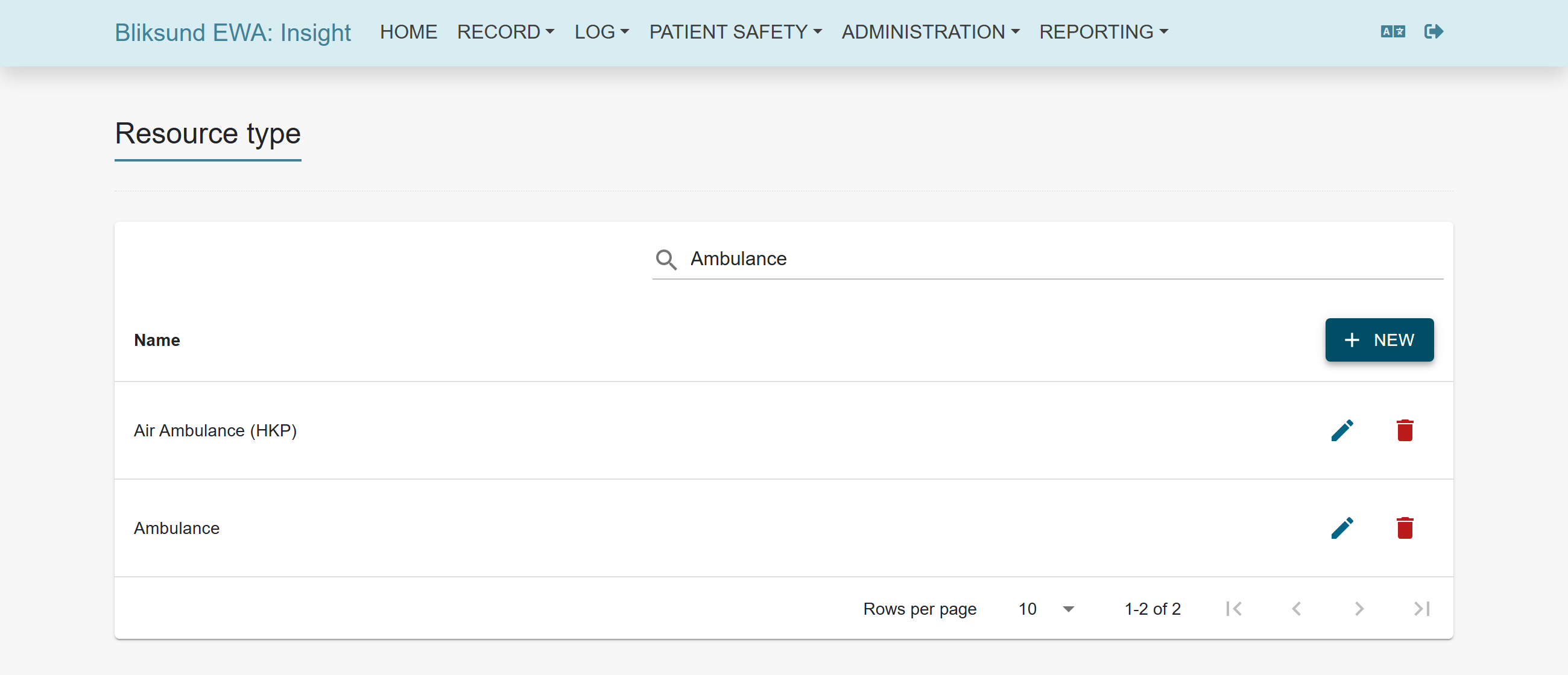
Administrating resource types
Buttons explanation:
 Creation Button - Add a new resource type
 Edit Button - Edit a specific resource type
 Delete Button - Delete a specific resource type
Adding resource type
- By clicking the creation button you will open a dialog for adding a new resource type: its name, its crew roles and the vital signs it offers.
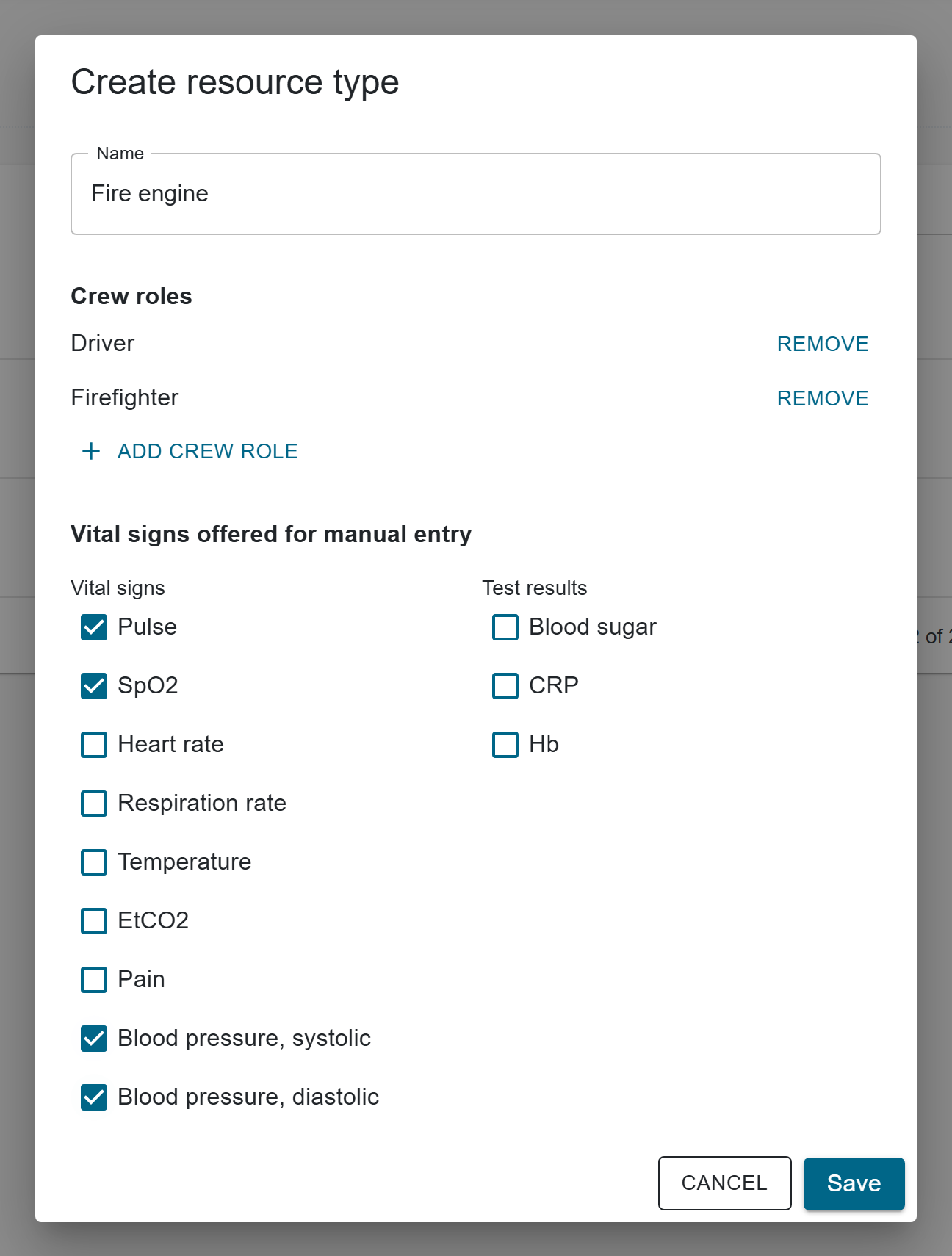
Editing resource type
- By clicking the edit button the same dialog opens for that resource type. Everything in it is saved together with one Save, and Cancel discards every change.
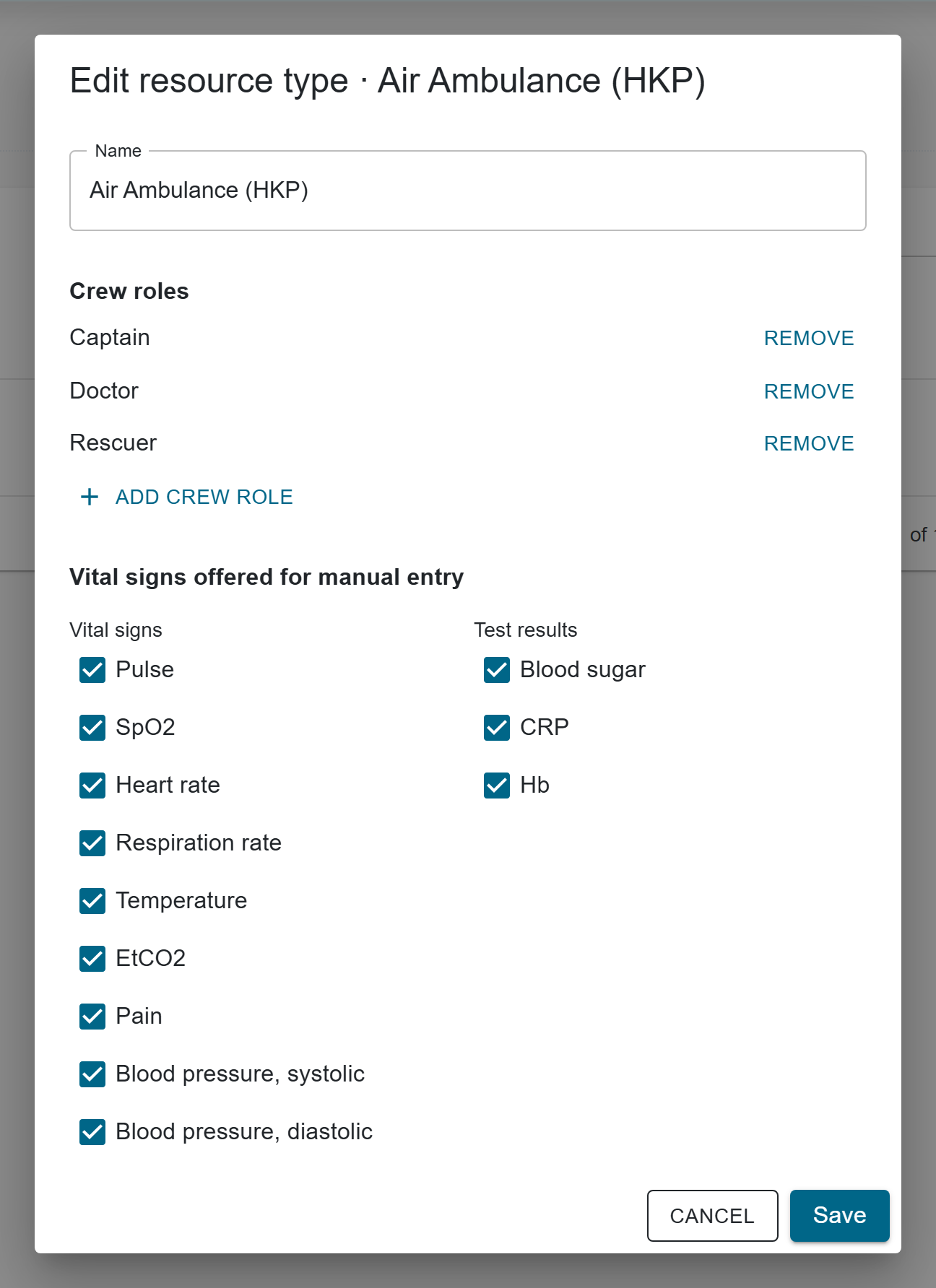
Crew roles
- The Crew roles section of the dialog lists the roles of the resource type. Select + Add crew role to add one (Enter confirms, Esc cancels), select a name to rename it, and select Remove to remove it. Names are required and unique per resource type.
- The section is only shown to users with the following access right:
| Access right | Requires federated login configuration? | Description |
|---|---|---|
| ManageCrewRole | No | Can see and change the crew roles in the resource type dialog. |
Vital signs offered for manual entry
- While the Vital signs settings feature is active, the dialog lists every vital sign and test result. The resources of the type offer the ticked ones for manual entry in the Client, from their next sync. Recorded values are never hidden.
- At least one must be ticked; otherwise Save is disabled. A new resource type starts with nothing ticked. An existing type that was never limited starts with everything ticked, and keeps offering everything, also vital signs added in a later version, until a box is unticked.
- Units and plausible ranges are set once for the whole installation, under Administration > Vital signs.
Resource types to resources
-
The added resource types will be available to be applied to the resources of your organization and/or department. A resource can only have one resource type selected, but all roles connected to the resource type will be available.
-
To access the resource settings page requires either one of these access rights depending on the administrative level:
| Access right | Requires federated login configuration? | Description |
|---|---|---|
| AllResources | No | Can access resources settings page and resource types settings page under the administration menu for all organizations and departments in Insight, view current values, edit values, and view the change history for those settings. |
| OrganizationResources | Yes | Can access resources settings page and resource types settings page under the administration menu for associated organizations in Insight, view current values, edit values, and view the change history for these settings. |
| DepartmentResources | Yes | Can access resources settings page and resource types settings page under the administration menu for related departments in Insight, view current values, edit values, and view the change history for these settings. |
